Error: "This transaction could not be processed..."
Summary
There are several reasons why you receive the error 'This transaction could not be processed because the company database could not be found" in Sage 50 Accounting. The options below will assist you in troubleshooting the error.
Resolution
▼ The data is on a stand-alone computer
Check the Error log
- Locate the company file and open the SAJ folder.
- Open the errorlog.txt file and check for anything unusual such as a hex dump. (Refer to the picture below for a sample of a hex dump).
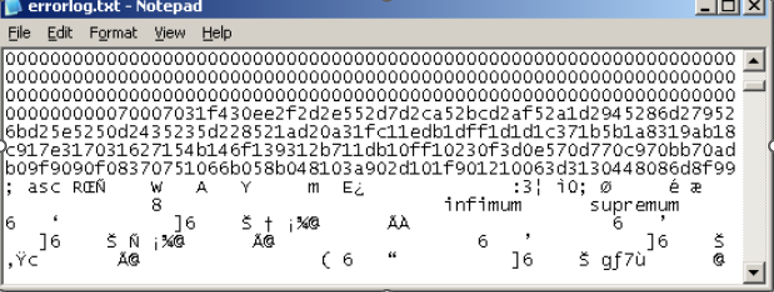
- If the "errorlog.txt" file shows something similar to the screenshot, then it’s a data corruption issue. Contact support at 1-888-522-2722 to check if you can send the data in for a chargeable data repair service.
- Run the Advanced Database Check. If you still receive the error, contact support at 1-888-522-2722 to see if you can send the data in for a chargeable repair.
Move the company file to a less restrictive location on the computer
- Select File, Save As.
- Under the C drive, create a new folder. (IE Named Accounting Data).
- Double-click on the newly created folder.
- Change the File name.
- Click Save.
Uninstall and reinstall Sage 50
- Uninstall and reinstall Sage 50.
- Create a folder on the C Drive.
- Move Sage 50 to the new folder.
▼ The file is on a USB
 NOTE: If data stored on a USB suddenly causes errors, the USB lost connection during a database write, resulting in a Hex dump or file damage.
- Restore from a backup.
- Verify that you no longer receive the error.
- Call Sage Support at 1-888-522-2722 to have the file sent in to our Data Repair team for a chargeable repair.
Need more help?
Solution Properties
- Solution ID
- 221924750011903
- Last Modified Date
- Tue Jun 24 22:05:05 UTC 2025
- Attributes
-
Product DetailsIntegrated Product: Blueprints
- Views
- 0