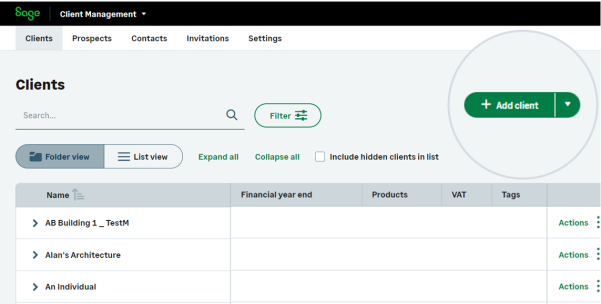
You'll see client folders when you're on the client list and have Folder view selected.
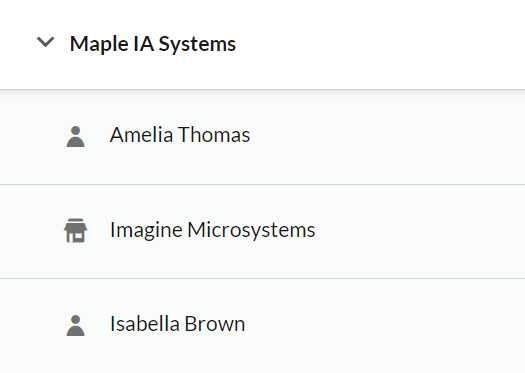
A client folder lets you group the company with the directors so they appear together in the client list.
The below example shows the final accounts work for Imagine Microsystems listed beside the personal tax returns for the directors Isabella Brown and Amelia Thomas.
What's the difference between a client and a contact?
In Client Management:
-
Clients are defined as individuals or organizations that you do work for. You can add subscriptions like Sage Accounting to a client. Select the Clients tab to view the client list.
-
Contacts are quick references that include basic details like phone numbers and addresses. You cannot add subscriptions to a contact. Select the Contacts tab to view the contact list.
How to add or manage clients?
Work with the client and contact lists
The client list is where you’ll find all the client folders and clients. View the client list by selecting the Clients tab.
The contact list is where you'll find all the contacts. View the contact list by selecting the Contacts tab. You'll also find a client's related contacts within each client's record in the Relationships tile.
The prospect list is where you'll find all your prospects. View the prospect list by selecting the Prospects tab. You'll also find a client's related prospects within each client's record in the Relationships tile.
The administrator for Client Management can assign users a selection of clients to access instead of all of them.
Key parts of the Clients list
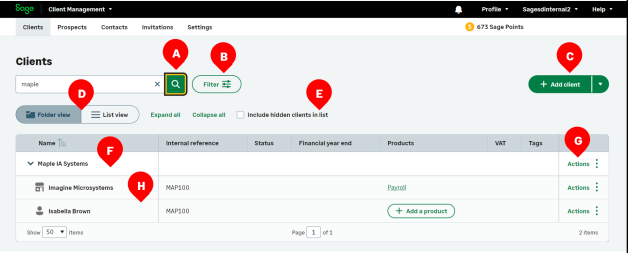
| A | Find clients by entering their names in the search box. |
| B | Select Filter to display a subset of clients. |
| C | Add clients ready to store their details, or import client details from an XLS, XLSX or CSV file. |
| D | Toggle between displaying the clients within their client folders or as a flat list by selecting Folder view or List view. |
| E | Select Include hidden clients in list to show all clients including those you've hidden. |
| F | When in the Folder view, expand a client folder in the list to see the clients within. |
| G | Select Actions for additional actions to take with your client folders and clients. |
| H | Individuals and organisations are shown when a client folder is expanded. |
How do I filter the Clients List or find a client?
View and change your clients' details
Once you've added your clients to Client Management, it's easy to update their details.
It's simply a case of finding them in the client list, selecting Actions and then editing their details.
Manage details for your clients, contacts and prospects
Access your clients' subscriptions
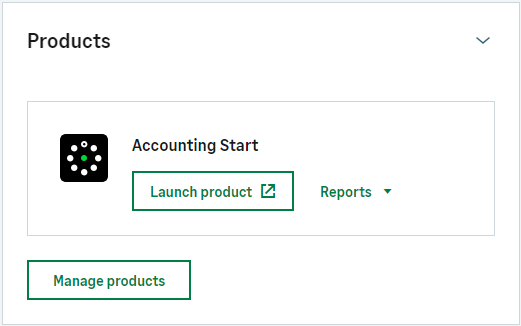
If you have a subscription to Sage Accounting, you can open any of your client's subscriptions from the client list.
To do this, select the name of the product in the same row as the client.
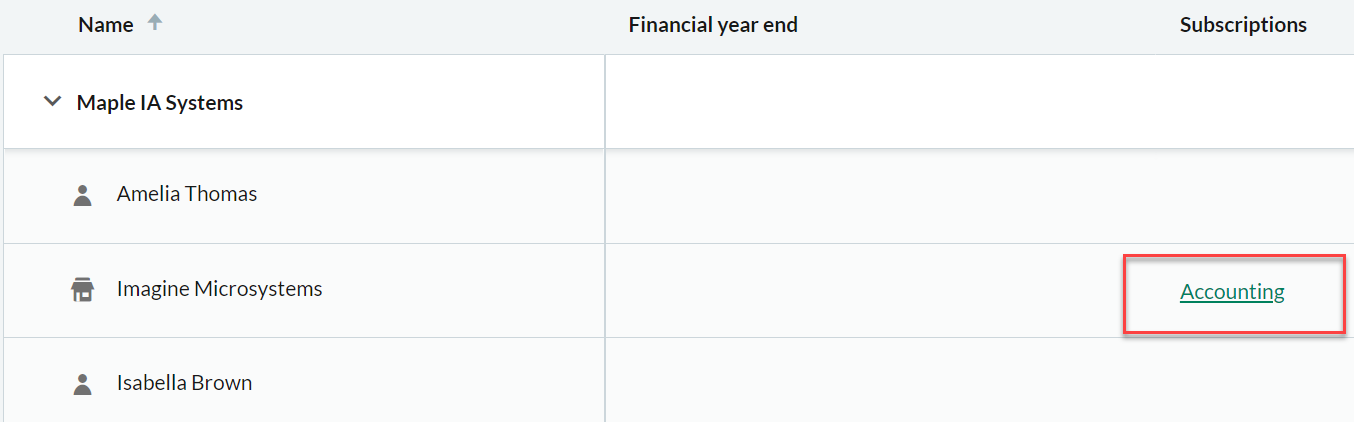
Or once you've opened a client, you can find them in the Products tile.
 NOTE: Note: If you're accessing a subscription that your client is paying for, open the client, select the Products tab, then find the subscription under the Connected heading.
You can find out more about getting started with Sage for Accountants by watching our Get started with Sage for Accountants video (opens in a new tab).