

Summary
How do I process more than one paycheque and pay multiple employees at the same time?
Resolution
Before Starting:
- You need to subscribe to a service plan that includes payroll.
- See How to enable direct deposit for employees to pay your employees using direct deposit
- See How do I print multiple items(sales/purchases invoice, estimates, contracts, cheques, direct deposit stubs...) at one time? to print paycheques in batches and set up batch printing for cheques.
- Ensure the income is set up properly before using the payroll cheque run.
To process a Payroll Cheque Run:
- Open the Payroll Cheque Run window.
- In the Home window, click Employees & Payroll on the navigation pane.
- In the Tasks pane, click the Payroll Cheque Run icon.
- (Optional) If you want unpaid employees to be automatically selected based on the period end date, in the Payroll menu, check Use Period End Date.
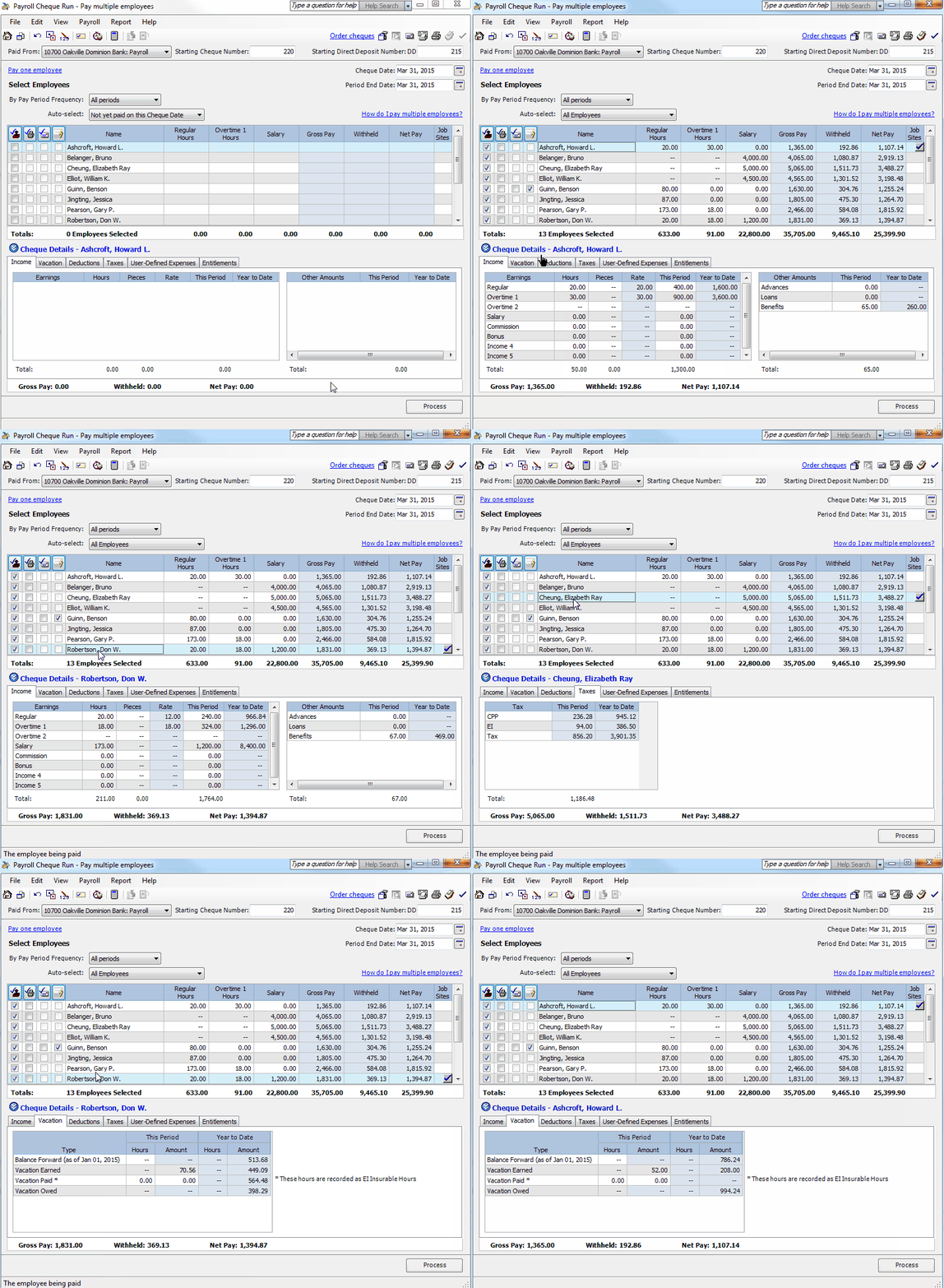
- Fill in the payroll information:
In this box: Enter the following information: Paid From Select the bank account from which the payroll will be taken. Cheque Date Enter the date on which you make the payment. This date is printed on the cheque and is also recorded as the transaction date. Period End Date Enter the date of the last day in the pay period. Pay Period Frequency Select the frequency for the employees you want to pay in this payroll run. If you have more than one pay cycle, All Periods displays automatically but you can select another option if you prefer. Auto-select Select the subgroup of employees that you want to pay in this payroll run. By default, the employees to be paid on the Cheque Date or Period End Date are displayed and selected. Choose All for this Cheque Date to display and select all employees within this pay period frequency. Choose All Employees to display and select all employees regardless of their pay period frequency. - (Optional) Click
 to select all the employees in this payroll run. Clicking this button again will clear all selections.
 - In the
 column, select the employees you want to print a report, paycheque, or direct deposit stub for this payroll run.
 - In the
 column, select this box if you want to email employees their direct deposit stubs. You need to enter direct deposit information in the employee's record before the box can be checked.
 - In the
 column, select the employees whose paycheques are to be directly deposited to their bank accounts. You need to enter direct deposit information in the employee records before the boxes can be checked.
 - (Optional) Highlight a single employee to allocate their paycheque amount to one or more projects and click
 .
. - (Optional) (Sage 50 Premium Accounting or above) Allocate an employee's paycheque amount to a department or departments, if the employee hasn’t been assigned to any department or if you want to use a different department.
- In the employee list, click to highlight the employee you want to modify.
- In the Payroll menu, select Allocate to Departments.
- In the Department column, double-click the line of the account you want to allocate to the department(s).
- In the % column, enter the allocation percentage for the department.
- Click OK.
- Click OK to close the Accounts and Departmental Allocations window.
- You can make changes to the hours and amounts directly in the employee list or click Cheque Details to see more details about each individual paycheque and make additional changes.
- (Optional) On the Report menu:
- Choose PayrollCheque Run Summary to print a report showing the amounts that will appear on employees' cheque stubs.
- Choose Print Direct Deposit Stub Summary to print a report showing detailed amounts for each employee who will receive a direct deposit payment.
- On the File menu:
- Choose Print Payroll Cheques to print paycheques.
- Choose Print Direct Deposit Stubs to print direct deposit stubs.
- Click Process.
Important Notes:
- It’s important to verify that an amount is populating on every employee payroll cheque run tab (primarily Income, Vacation and the Taxes tab) before clicking on Process (just like the Paycheque module), because employees are able to have different payroll settings (calculate or not calculate tax, calculate or not calculate EI / CPP) based on the setup income types assigned. If taxes aren’t calculating see Why are the payroll taxes calculating but incorrectly? in Related resources. If vacation isn’t calculating, see Vacation not calculating correctly for some employees.
- Payroll that is processed with the payroll cheque run can only be adjusted or voided individually in the Paycheques window.
- To understand the Payroll Cheque Run module, see Understanding the Sage 50 Payroll Cheque Run module
 Africa
 Asia
Asia Australia
 France
 Ireland
 Kenya
Kenya Nigeria
 Portugal
 South Africa
 Spain
Spain United Arab Emirates
 United Kingdom
 United States
 Germany