

Summary
Error: "You have a valid login but you are not authorized to use this feature. Contact your Sage ID administrator so you can use this feature" when logging into Sage 50 Accounting using Remote Data Access (RDA).
Cause
- Locked account
- The data isn’t in the latest version of Sage 50
- The Sage servers are down
Resolution
Verify you're logged in with the correct Sage ID
- Open Sage 50 and select Connect to a shared company.
- Click OK, then OK.
- Verify the email at the top is correct. If the email isn't correct, click Log in as a different user.
- Log in with the correct email address.
- If you're the sysadmin, log in with the email address that you used to share the data file.
- If you're a different user, this is the email that the sysadmin added when they shared the file with you.
- Close the window and try to open your data file again.
Service check
- Check for outages at status.sage.com.
-
Check your internet service speed with your internet service provider.
Internet check
Check your internet speed at a website such as speedtest.net. For best performance: upload/download speeds of at least 25mbps; minimum upload/download speeds of 10mbps. Consider stopping use of Remote Data Access is the access isn’t in the required range.
Elevate launch
To run Sage 50 as administrator onetime only
- Right-click on the Sage 50 Accounting icon.
- Select Run as administrator.
To set up Sage 50 to run always as administrator
- Right-click on the Sage 50 Accounting icon, then select Properties.
- Select the Compatibility tab.
- Check the box to Run this program as an administrator.
- Select Change settings for all users.
- Check the box to Run this program as an administrator.
- Select Apply, then OK.
- Select OK.
- When launching the Sage 50 icon, agree to the User Account Control prompt.
Convert
- Convert the data and open in the latest version. Get the latest version from the Sage 50: Download Portal.
Password reset
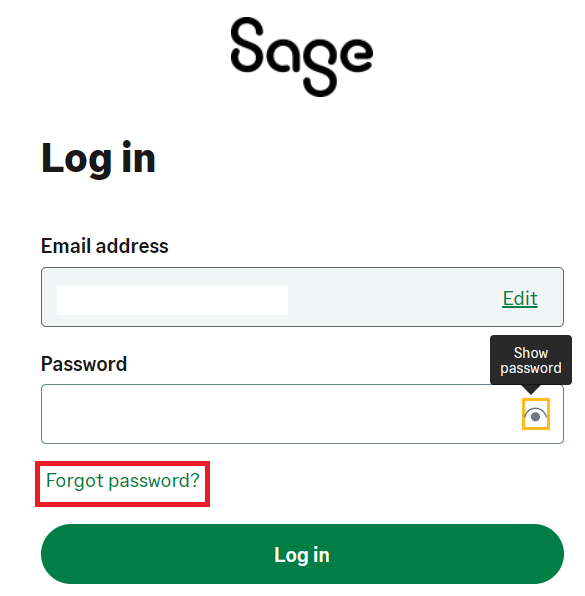
- Reset your password by clicking the Forgot Your Password on the Log in to Sage window.
Share a company
- Share at least one company or have the original owner share the file with you.
- Connect to a shared company using the steps in how to download a file shared with RDA.
Open the sample company
- Open the sample company.
- Go to Help, Upgrade your Sage 50 Product, and click OK.
- Go to File, Remote Data Access, then Share Company.
- When asked to enter your Sage ID, close the window.
- Go back to the Welcome screen and choose Connect to a Shared company.
Redownload company
- Open Sage 50.
- Download the Remote Data Access company to a new location.
- Check if the file opens now without error.
- If the file doesn't open on another workstation, stop sharing and reshare the file.
User check
- If the issue only happens with one user, remove the user and invite them again.
- If the issue persists, open the existing Remote Data Access file.
- Go to File, Remote Data Access, and Pause Sharing.
- Go back to File, Remote Data Access, and Resume Sharing.
- Download the Remote Data Access file again.
Create a new Windows user
- Create a new Windows user and confirm that the sample company opens.
- Download your company file from Remote Data Access in the new Windows user profile.
- Confirm the user can now open the company file.
 Africa
 Asia
Asia Australia
 France
 Ireland
 Kenya
Kenya Nigeria
 Portugal
 South Africa
 Spain
Spain United Arab Emirates
 United Kingdom
 United States
 Germany