How to set up Electronic Funds Transfers (EFT)
Summary
Set up Electronics Funds Transfer (EFT) or Customer Automated Funds Transfers (CAFT). Create an export file to use with the bank's software to process Automatic Fund transfers in Sage 50 Accounting.
Resolution
Table of Contents
Watch a video
Watch this short video on how to set up EFT in Sage 50 Accounting.
Follow the steps
If you prefer to follow step-by-step guidance. use the steps below.
Before you begin
- EFT is a Sage 50 add-on service.
If you're interested in getting the EFT add-on, leave your details, and a Sales advisor will be in touch.

- If you’re new to EFT/CAFT, you’ll need to get the EFT account credentials from your bank.
- Sage 50 has no direct connection to your bank.
- The Upload button in Sage 50 generates the files for you to upload to the bank
- You’ll have to upload the generated file manually to the bank using your bank's website
- It isn’t possible to send or receive EFT funds in foreign currency.
Preliminary Setup
- Log in to Sage 50 in Single-user mode.
- Go to Setup, Settings, Company, Payment Processing.
- You have the option for Direct Payments (Beanstream/Bambora) and EFT Direct.
- Select EFT Direct and fill in the rest of the information such as: Bank Name, Name.

- Always select CPA Standard for Bank Name
- You can click Set up a new bank or modify existing banks to update bank account information
- Use the Select a Bank for direct deposit and pre-authorized debit dropdown list to select your financial institution.
- Select "OK" to save the changes.

Payroll
- You’ll need to enable the option for doing direct deposit for all your employees.
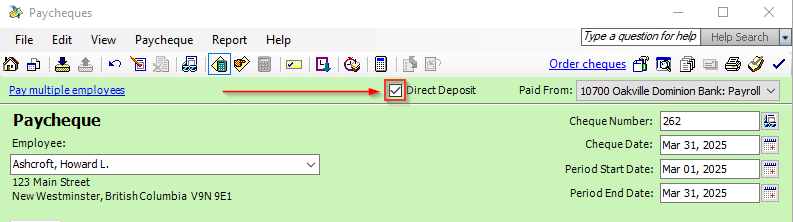
- Process the Paycheques and make sure to check the Direct Deposit checkbox on all new payroll.
- Generate EFT .DAT files for upload to the bank.
Vendors
- You’ll need to enable the option to send direct deposit payments to your vendors.
- Process the Direct Deposit.
- Generate EFT .DAT files for upload to the bank.
Customers
- Enable your customers to generate Pre-Authorized Debits (PAD) requests.
- Process the PAD transaction.
- Generate EFT .DAT files for upload to the bank.
Need more help?
Solution Properties
- Solution ID
- 224924950076554
- Last Modified Date
- Thu Jan 30 15:10:14 UTC 2025
- Attributes
-
Product DetailsIntegrated Product: Blueprints
- Views
- 0