

Summary
Backups protect against hardware failure, virus attacks, power failure, and natural disasters. Backups can help save time and money if these failures occur in your Sage 50 Accounting.
Resolution
▼ Creating a backup in Sage 50 Desktop
- Open your data file.
- If you have multiple users in Premium or Quantum, login as sysadmin in single user mode.
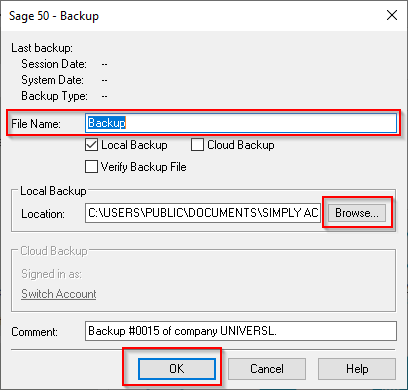
- Go to File, Backup.
- Enter the File Name. Include the date as part of the name
 NOTE: If you don't change the file name, it will overwrite your last backup.
 - Click Browse and select the folder where you wish to save your backup. The path will be the default path for your next backup
 CAUTION: Don't put the file location within the SAJ folder.
 - Click OK to start the backup.
- You can have Sage 50 create a backup every time you work on your data file
- You can back up to the cloud using Microsoft 365 and OneDrive
- Contact sales at
1-888-261-9610 to purchase the Microsoft 365 add-on
- Contact sales at
▼ Creating a backup in Sage 50 Cloud
- Open your data file.
- If you have multiple users in Premium or Quantum, login as sysadmin in single user mode.
- Go to File, Backup.
- Uncheck the Cloud Backup box if there's a checkmark.
- Enter the File Name. Include the date as part of the name NOTE: If you don't change the file name, it will overwrite your last backup.
- Click Browse and select a folder on the G: Drive where you wish to save your backup. The path will be the default path for your next backup CAUTION: The backup location must be on the G: Drive and the company file must be on the F: Drive. Don't put the file location within the SAJ folder.
- Click OK to start the backup.
Need more help?
 Africa
 Asia
Asia Australia
 France
 Ireland
 Kenya
Kenya Nigeria
 Portugal
 South Africa
 Spain
Spain United Arab Emirates
 United Kingdom
 United States
 Germany