

Summary
How to manage users in Sage Accounting and Sage Payroll.
Description
Assign individual credentials to each user to enhance data security and track user activity.
User Limits:
- Sage Accounting Start allows one business owner and one accountant
- Other Sage products have no user limit
Resolution
Add a new user
If the user is an accountant with a Sage Accountants subscription, refer to How to invite an accountant.
- Select your business name in the top-right corner.
- Click Manage users.
- Select Add user.

- Enter the user's email address.
- Choose the Product and Role from the dropdown menus. Each product allows one role per user. For role details, see Manage user roles.
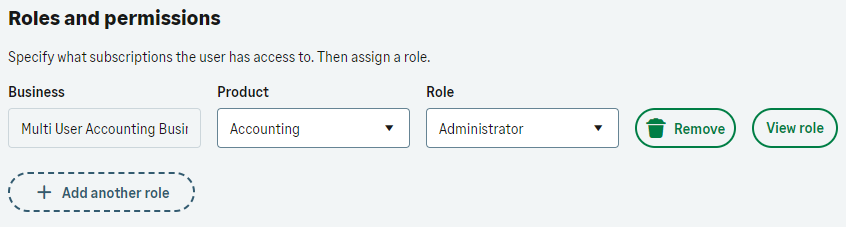
- Select the user's preferred language.
- Click Add.
The user will receive an email invitation. They must click the link and complete their profile.
Edit a user
Only administrators can edit user roles. You can’t edit the Business Owner's role.
- To change a user's role, sign in as the Administrator; see Manage user roles for more details
- To update a user's email address, refer to How to Update the Email Address
Remove a user
- Select your business name in the top-right corner.
- Click Manage users.
- Select the user or use the search box.
- Click Edit user.
- Click Remove next to the role. Removing all roles deletes the user profile.
- Click Save.
The removed user will see an error message if they try to access your business.
 Africa
 Asia
Asia Australia
 France
 Ireland
 Kenya
Kenya Nigeria
 Portugal
 South Africa
 Spain
Spain United Arab Emirates
 United Kingdom
 United States
 Germany