Before Starting Your accountant must have a Sage Accountants subscription to receive an 'accountant' invitation. If they don’t have a Sage Accountants subscription, add them as a user or ask them to upgrade to a Sage Accountants subscription. - If you're using Sage Accounting, log in as an Administrator or Standard user
- If you're using Sage Payroll or Accounting Start, log in as the Administrator
Invite an accountant using their Accountant ID - Advise your accountant to get their ID using this article: How to find your Accountant ID to give to your clients.
- From your business name, select Manage Business Account.
 -
Select Invite an advisor.
- Select Invite with Advisor ID.
- Enter the Advisor ID, and select Check.
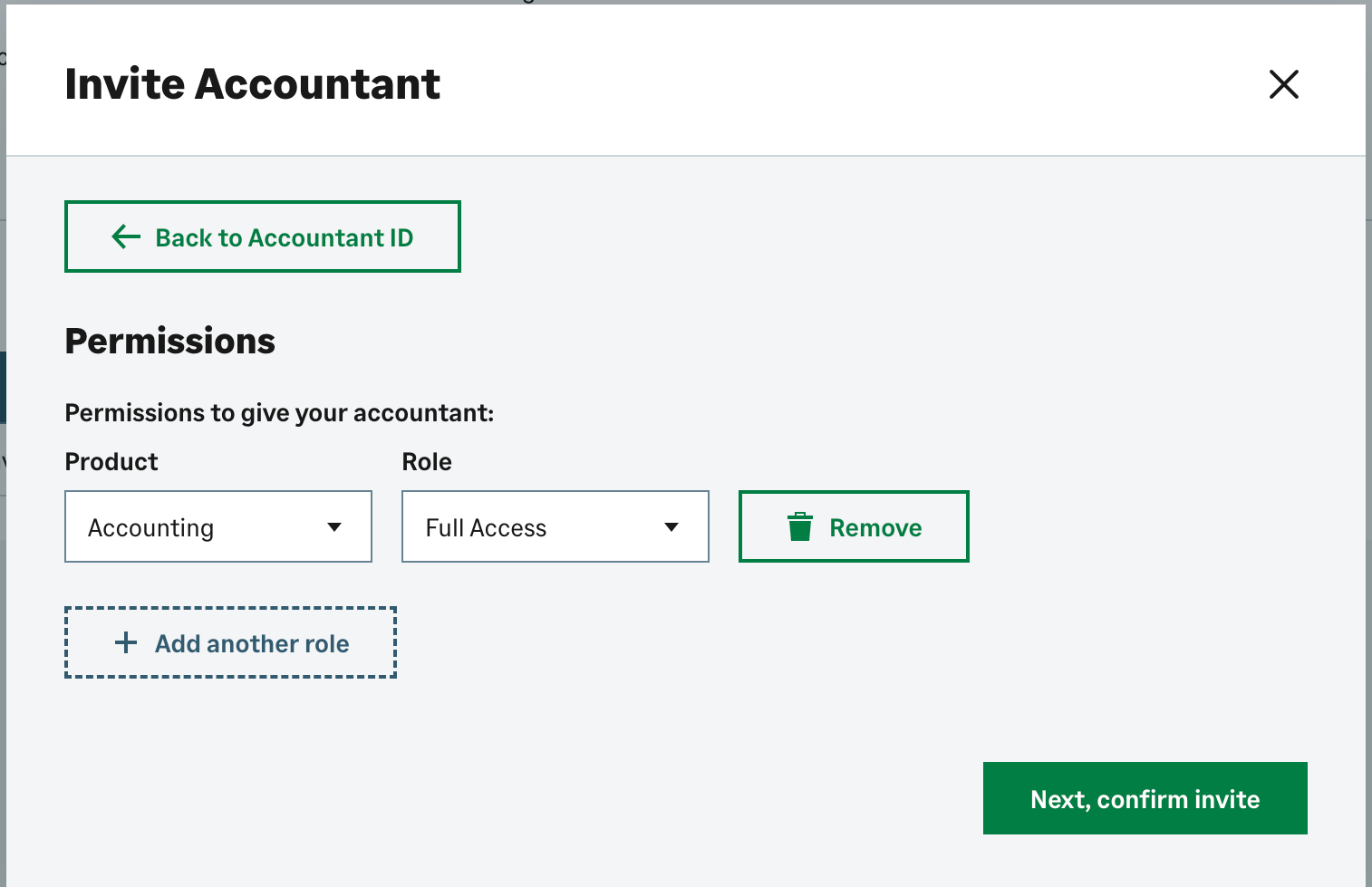
- Select Next, then add permissions.
- Select the product you want in the Product field.
- Select Full Access in the Role field.
 -
Select Next, confirm the invitation, then select Yes, Send Invitation. After you send the invitation, wait for the accountant to accept it. When they accept, Sage will connect your subscription to your accountant's subscription.
Check invitation status and manage access - To check an invitation status, go to the Invite History section.
- In Invite History, you can remove an accountant connection or view the status of outstanding invitations.
|