How to create and apply bank rules
Summary
Description
Use bank rules with bank accounts connected to a bank feed or when importing a statement. Create bank rules before or after receiving transactions via a bank feed or statement import. Manage bank rules anytime from a centralized location on the Banking page.
Resolution
Create bank rules
Before receiving transactions
- Select Banking, then select Manage bank rules to open the Bank Rules page for all accounts.

- Alternatively, select Actions, then Manage bank rules in a specific account to open its Bank Rules.
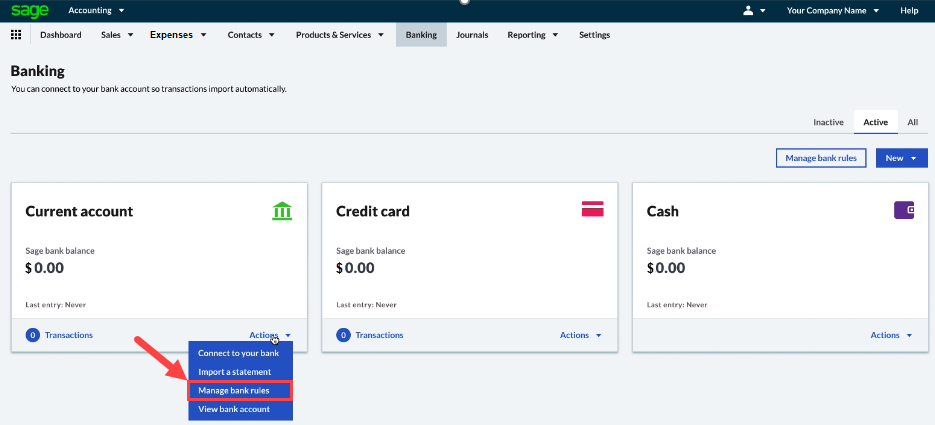
- Select an account in the Bank accounts field, if needed, then select Create rule.
- Enter a rule name, then select Payments (money paid out) or Receipts (money coming in).
- Select Activate this rule when saving to activate the rule. Clear this option later to deactivate it.
- Set the conditions a bank transaction must meet to match the rule.
- Set the transaction details that tell Sage Accounting how to create the transaction.


After receiving transactions
- On the Incoming Transactions page, select Rules, then New rule.
- Alternatively, select Create a rule on a transaction. The New rule window automatically fills in the transaction details.

- Enter a rule name, then select Payments(money paid out) or Receipts (money coming in).
- Review and edit the rule as needed, then select Save.

Explanation of fields
| Field | Description |
| Conditions | |
| Field | Choose the information that identifies the imported transaction, such as Reference and Date or Reference and Amount. |
| Value | Set the conditions and the value to match, such as the transaction amount. |
| Equals | The imported transaction must exactly match the values. Use this for pre-authorized debits or other transactions where the amount or reference never changes. |
| Contains | The imported transaction contains part of the value you set. Use this for references that combine the vendor name with a unique transaction number. |
| Does not contain | Use this for exceptions to a more general rule. |
|
Transaction details | |
| Transaction type | For bank transfers, set up the rule in one of the transfer's bank accounts. In the other account, select Match against the incoming or outgoing transfer. For Money Out and Money In, you must enter a Ledger Account and Tax Rate. |
| Vendor | Select the vendor you paid or who paid you. |
| Method | Select the payment method, such as Credit/Debit Card or Cheque. |
| Reference | Enter an optional reference for this transaction type. |
| Description | Enter an optional description for this transaction type. |
| Ledger Account | Select the ledger account to debit or credit with the transaction amount. |
| Tax Rate | Select the tax rate that applies to this transaction type. |
Prioritize the order
Sage Accounting applies only one bank rule to each downloaded or imported transaction. If you have multiple bank rules, prioritize them to control the order they apply. Give your most specific rules the highest priority, such as a rule set to a specific amount. Give rules with general conditions a lower priority.
- Go to the Apply the rule in this order section.
- From the Priority dropdown list, select First to give this rule top priority.
- Select Below if this isn't a top priority rule. Choose the bank rule it follows in the order.
- Select Save.
Sage Accounting applies new bank rules the next time you bring in transactions from your bank. To apply them to pending transactions, select Apply rules to pending transactions.
Apply bank rules to incoming transactions
Sage Accounting automatically applies your bank rules to incoming transactions and suggests entries on the Incoming Bank Transactions page. Select Create All if the suggested transactions are correct. Select Review these transactions to check the applied rules before you create transactions. The Rule Applied message appears on each transaction that matches a rule.

Accounting notifies you if the rule is missing any details required to create a transaction.

The Imported from statement message shows each transaction imported from a bank statement.

The Imported from AutoEntry message shows each transaction imported from AutoEntry.

Example bank rule
Every month, Wonderland Cakes pays $199 to County Utilities Company for its utility bill by direct debit. The business owner sets up a bank rule because the amount and vendor never change. The rule automatically creates the transaction when it arrives from the business account at National Bank. Bank rules work with bank feeds and imported statements, so you create the same transaction from either source.
The business owner sets these conditions:
| Field | Values | Description |
| Reference | Equals | Utilities |
| Amount | Equals | 199.00 |

Because it's a payment, the business owner sets these transaction details:
| Transaction type | Money Out |
| Vendor | Utilities |
| Method | Credit/Debit Card |
| Reference | Country Utilities Company |
| Description | Utilities direct debit |
| Ledger Account | Electricity (7200) |
| Tax Rate | Rate 5% |

What's next?
Related Solutions
Solution Properties
- Solution ID
- 240304191717817
- Last Modified Date
- Thu Oct 29 23:13:23 UTC 2026
- Views
- 0