Remote Data Access (RDA) file is missing transactions
Summary
How to resolve the issue when a Sage 50 Accounting data file that's on Remote Data Access is missing transactions.
Cause
- One of the users is working on a non-shared company file
- Different versions of the file exist on Remote Data Access
Resolution
How to resolve the issue
One of the files stopped sharing
- Look for a second version of the file on your computer. If you don't see another version of the file, contact support.
- Determine which file version is more up to date by finding the latest journal entry number.
- Stop sharing the wrong file.
- Rename and re-upload the file to Remote Data Access.
- Re-download the file on the secondary user's computer.
Both files are on RDA but one user is missing transactions
- Open the data file that has all the transactions.
- Go to File, Remote Data Access, then Pause Sharing.
- Go back to File, Remote Data Access, then Resume Sharing.
- Re-download the file on the secondary user's computer.
- Verify that you can see all transactions on the second computer.
Preventative measures
- Notify the file owner before restoring manual backups while using Remote Data Access.
- You don’t need to restore backups when a file on RDA
- Once you open the file, Sage 50 remembers that it’s on Remote Data Access
- Place a shortcut to the exact SAI file location.
- Right-click on the Sage 50 Data File (.SAI) and click Send to Desktop
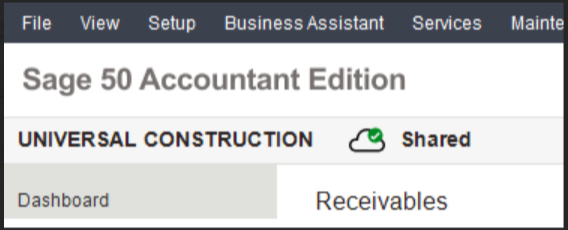
- When you open an RDA file, look for the Shared (cloud) icon next to the company name. Make sure this icon shows on all computers.
Need more help?
Solution Properties
- Solution ID
- 224924650067253
- Last Modified Date
- Thu Jan 23 23:26:13 UTC 2025
- Attributes
-
Product DetailsIntegrated Product: Blueprints
- Views
- 0