

Summary
How to resolve the issue when a Sage 50 Accounting data file that's on Remote Data Access is missing transactions.
Cause
- One of the users is working on a non-shared company file
- Different versions of the file exist on Remote Data Access
Resolution
How to resolve the issue
One of the files stopped sharing
- Look for a second version of the file on your computer. If you don't see another version of the file, contact support.
- Determine which file version is more up to date by finding the latest journal entry number.
- Stop sharing the wrong file.
- Rename and re-upload the file to Remote Data Access.
- Re-download the file on the secondary user's computer.
Both files are on RDA but one user is missing transactions
- Open the data file that has all the transactions.
- Go to File, Remote Data Access, then Pause Sharing.
- Go back to File, Remote Data Access, then Resume Sharing.
- Re-download the file on the secondary user's computer.
- Verify that you can see all transactions on the second computer.
Preventative measures
- Notify the file owner before restoring manual backups while using Remote Data Access.
- You don’t need to restore backups when a file on RDA
- Once you open the file, Sage 50 remembers that it’s on Remote Data Access
- Place a shortcut to the exact SAI file location.
- Right-click on the Sage 50 Data File (.SAI) and click Send to Desktop
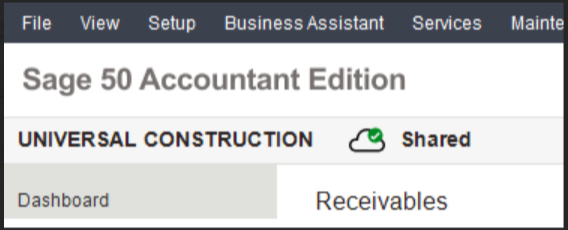
- When you open an RDA file, look for the Shared (cloud) icon next to the company name. Make sure this icon shows on all computers.
 Africa
 Asia
Asia Australia
 France
 Ireland
 Kenya
Kenya Nigeria
 Portugal
 South Africa
 Spain
Spain United Arab Emirates
 United Kingdom
 United States
 Germany