

Summary
Set up the employee for direct deposit in the Direct Deposit Tab of the employee record in Sage 50 Accounting. You can enter either a fixed amount or a percentage.
Resolution
- Go to Employees & Payroll, then Employees.
- Select the employee from the list and double-click to open the record.
- Go to the Personal tab and enter the employee's email address in the Email field.
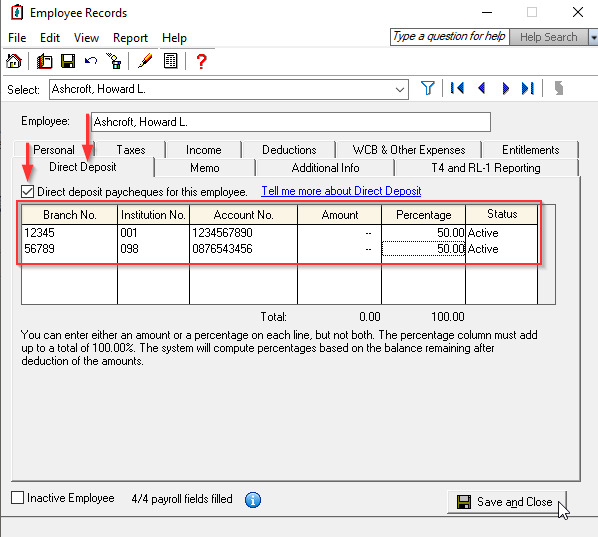
- Go to the Direct Deposit tab.
- Place a checkmark in the "Direct deposit paycheques for this employee" box.
- Enter the banking information.
- Enter a fixed amount or percentage.
- If you use an amount and a percentage for different accounts.
- Enter the account on the first line where you’ll deposit first
- Then enter the amount or percentage
- Enter the second account on the second line and enter the Percentage
- All percentages must equal 100% before leaving the window

- Repeat this process for all employees using direct deposit.
- Click Save and Close.
You can now create paycheques and generate a payroll direct deposit electronic file to send to the bank if needed.
Need more help?
 Africa
 Asia
Asia Australia
 France
 Ireland
 Kenya
Kenya Nigeria
 Portugal
 South Africa
 Spain
Spain United Arab Emirates
 United Kingdom
 United States
 Germany