| | How to invite an accountant to your subscription |
| Description | Your accountant must have a Sage Accountants subscription to follow the steps below. If your accountant doesn't have an Accountant's subscription, add them as a user. See the article How to add or remove users. |
| Resolution | Before you begin - Log in as an Administrator or Standard user for Sage Accounting Standard or Plus
- Log in as the Administrator for Sage Payroll or Accounting Start
- Review How to manage user roles if unsure about permissions
Invite an accountant using an Accountant ID - Select your business name, then select Manage Business Account.
 - Select the Invite accountant tab, then select Invite an accountant.
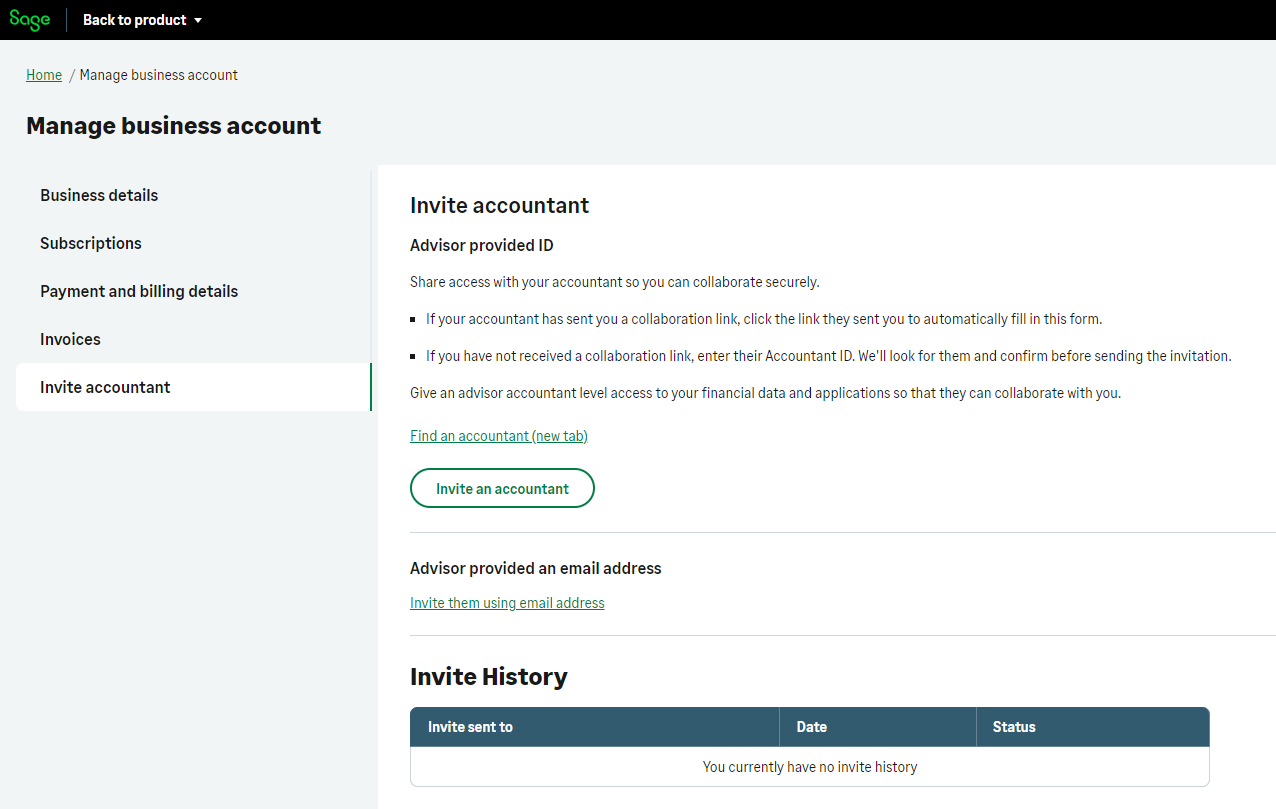 - Enter the Accountant ID, then select Check.
- Select Next, then set the required permissions.
- Select a product in the Product field.
- Select Full Access in the Role field.
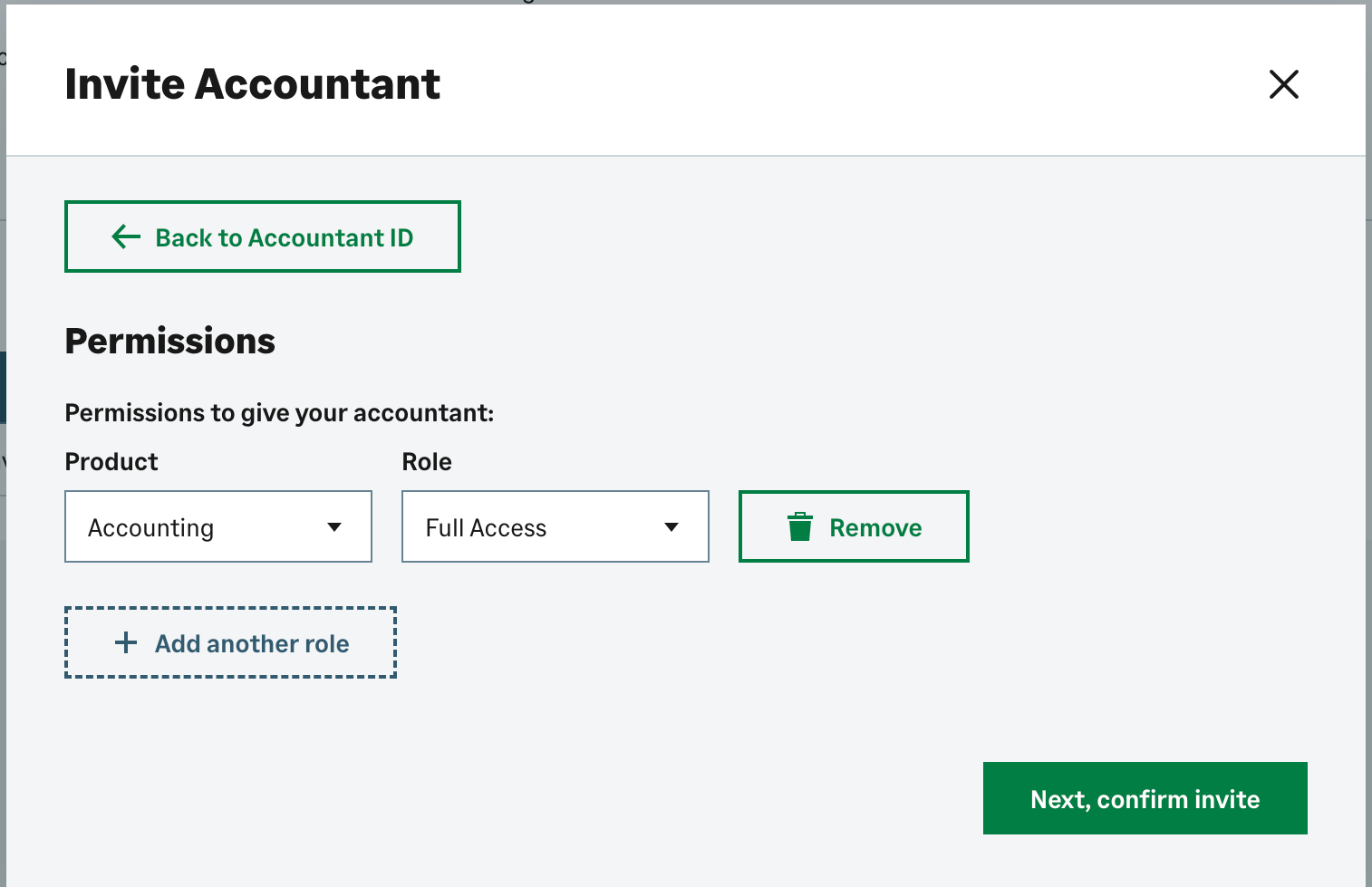 - Select Next, then select Confirm invite.
- Select Yes to send the invitation.
Your subscription connects to the accountant after they accept the invitation. If the accountant does not know their Accountant ID, see the article Find your Accountant ID to give to your clients. Invite an accountant using an email address - Select your business name, then select Manage Business Account.
- Select the Invite accountant tab, then select Invite them using email address.
- Enter the accountant’s email address, then select Send invitation.
Use the email address the accountant uses to sign in to Sage Accountants. Your subscription connects after the accountant accepts the invitation. Check invitation status and manage access - Open the Invite History section to view the invitation status.
- Remove an accountant connection if required.
- Confirm whether an invitation is pending or accepted.
|
|