How to transfer subscriptions to another accountant
Description
Cause
Resolution

 TIP: You must be the practice owner or have subscription administrator rights to perform this task. 

  1. Open your client in Client Management.
  2. Click Products.
  3. Open the Subscription actions dropdown, then Transfer subscriptions.
  4. The Transfer subscription ownership sidebar will open. It shows active subscriptions you own on behalf of your client.
    Screenshot of the Transfer Subscription Ownership Sidebar.
  5. Click Continue.
  6. When asked who to transfer subscription ownership to. Choose Another accountant or bookkeeper.
  7. Enter the Accountant ID. This is a Client Management unique code assigned to each practice.

     NOTE: 
    The Accountant ID is in the Invitations area in Client Management. 

  8. Click Check. If it doesn't validate, ask the accountant to double check the ID they gave is correct.
  9. Click Continue.
  10. Review the Terms and Conditions and tick the box next to "I understand the consequences..."
  11. Click Send the transfer request.
  12. You'll see a success message to say you sent the subscription transfer request.
  13. Click Close.
What happens after you send the transfer request>
  • The subscription transfer request will appear under Invitations in Client Management for the new accountant
  • The accountant has 30 days to accept or decline the invitation
  • If they accept the transfer request, the subscription ownership immediately transfers to them
  • If they decline the request or it expires, you'll see the updated status in the sidebar
  • You’ll receive a notification when a transfer has been successfully completed

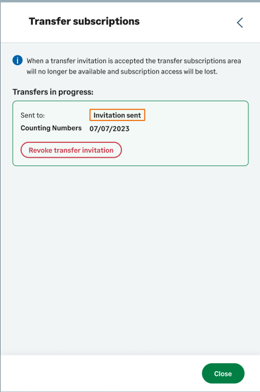
Click Transfer subscriptions to view the status sidebar.

Screenshot of the pending transfer in the transfer subscription sidebar.


Steps to duplicate
Related Solutions

Manage invitations — subscription access and ownership

How to revoke a transfer request