Open estimate window doesn’t appear on my monitor (Estimating SQL)
Description
Cause
Resolution

CAUTION:

Sage support can't assist with third-party products, hardware, report customizations, or state and federal tax questions. Refer to our Scope of Support for more info. Contact your Sage business partner, network administrator, or accountant for assistance.
Troubleshoot common causes

There are multiple known causes for windows opening off screen or minimized on the taskbar.

If none of those steps resolve the issue, continue with the Rename option below.

Rename the Roaming Estimating folder

Rename the Estimating file in the Roaming folder. You can find this in the C:\Users\(Username)\AppData\Roaming\Sage\Estimating XX.XX path.

If that doesn’t fix the issue, delete the new folder and rename the old folder. Then continue with the Reset Settings section below.

Reset settings

Considerations

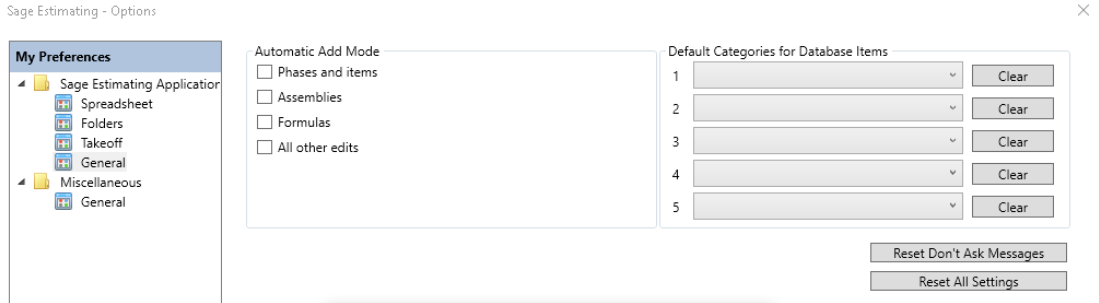
Using the Reset All Settings option restores all settings under My Preferences to their original (“factory”) settings.

Editable preferences settings, by group

  • Spreadsheet: Controls the following:
    • Your preferences for the default appearance of spreadsheets
    • The method of rounding addon amounts in the Totals window
    • Your preferences for displaying grand totals
  • Folders: Set the file path for the Sage Estimating (SQL) reports folder.
  • Takeoff: Controls defaults for taking off one-time items and assemblies.
    • For one-time item takeoff, you can specify which categories it pre-selects. You can control whether assembly items generate during takeoff when they have a quantity of zero.
    • You can also determine whether the Pass Audit window closes automatically after viewing an assembly or pass.
  • General: Sage Estimating (SQL). Controls how Estimating behaves when you create records, open a list, and use the digitizer for assembly takeoff.
  • Miscellaneous: Accept or decline participation in the Product Enhancement Program (PEP).

Reset the settings

  1. Open Sage Estimating and select the File tab.
  2. Select the Options.
  3. Click the Reset All Settings button.
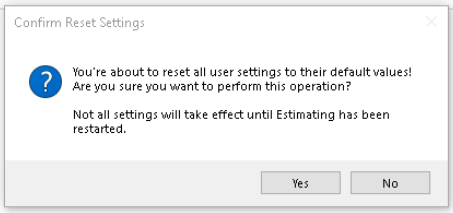
  4. Click Yes on the Confirm Reset Settings window.
  5. Complete the Setup.
  6. Click Close.


Need more help?

Chat now


Steps to duplicate
Related Solutions