Schedule payslip upload to Sage HR
Summary
How to manage when Sage 50 will upload payslips to Sage HR. This allows you to make payslips available immediately after processing paycheques, on the paycheque date, or a manual date of your choice.
Resolution
Before entering paycheques
- Go to the Online Payslips dropdown arrow in the Employees & Payroll module and select Manage Delivery Settings.
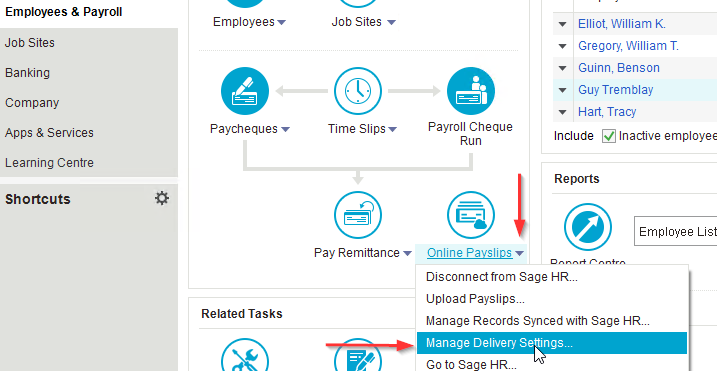
- Adjust the Delivery Settings future payslip settings to:
- Automatically upload payslips right after processing paycheques
- Automatically upload payslips and make available on the paycheque date
- Manually upload payslips and set an available date

- Click Save.
After processing paycheques
- Click the Online Payslips dropdown arrow in the Employees & Payroll module.
- Click Upload Payslips...

- On the Upload payslips to Sage HR window, find any payroll transactions that say Not Published.
- Adjust the Make available: to Immediately or On paycheque date.
- Click Submit.

Solution Properties
- Solution ID
- 230914005816610
- Last Modified Date
- Thu Sep 14 00:58:16 UTC 2023
- Attributes
-
Product DetailsIntegrated Product: Blueprints
- Views
- 0