

Summary
How to manage when Sage 50 will upload payslips to Sage HR. This allows you to make payslips available immediately after processing paycheques, on the paycheque date, or a manual date of your choice.
Resolution
Before entering paycheques
- Go to the Online Payslips dropdown arrow in the Employees & Payroll module and select Manage Delivery Settings.
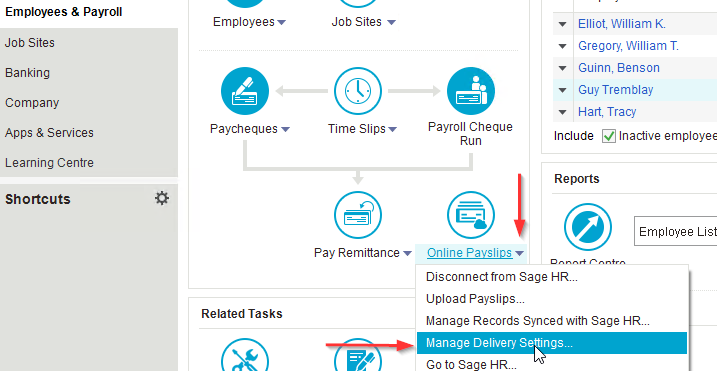
- Adjust the Delivery Settings future payslip settings to:
- Automatically upload payslips right after processing paycheques
- Automatically upload payslips and make available on the paycheque date
- Manually upload payslips and set an available date

- Click Save.
After processing paycheques
- Click the Online Payslips dropdown arrow in the Employees & Payroll module.
- Click Upload Payslips...

- On the Upload payslips to Sage HR window, find any payroll transactions that say Not Published.
- Adjust the Make available: to Immediately or On paycheque date.
- Click Submit.

 Africa
 Asia
Asia Australia
 France
 Ireland
 Kenya
Kenya Nigeria
 Portugal
 South Africa
 Spain
Spain United Arab Emirates
 United Kingdom
 United States
 Germany