

Summary
How to resend a welcome email to an employee so they can set up their access to Sage HR Online Services.
Description
When you add an employee to Sage HR Online Services, they receive a welcome email inviting them to start using the service to view their payslips. If the welcome email expires or the employee doesn't receive this, you can resend it. We show you how in the steps below.
Resolution
You can resend a welcome email individually, or to multiple employees.
Resend the welcome email to a single employee:
- Log in to Sage HR Online Services as an admin user.
- Go to an employee's profile.
You can either search for them or from the main menu on the left, click Company then click the relevant employee profile. - On the Employee tab of the profile menu, scroll to the bottom and click Personal settings.
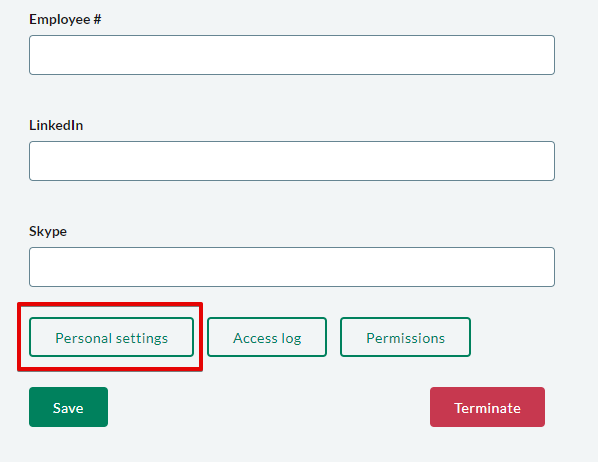
- Click Resend SageID invitation email.

This changes to SageID invitation was sent. - Click Save.
Resend the welcome email to multiple employees:
- Log in to Sage HR Online Services as an admin user.
- On the main menu, click Reports, then click Access logs.
- Click Re-send welcome email in the Never logged in widget.

- To send a welcome email to individual employees, click Send next to their name, or to send to everyone in one go, click Send email to all.

Employee not receiving their welcome email?
If your employee tells you that they haven't received a welcome email, and you have sent it multiple times please make the checks outlined in our Employee hasn't received their welcome email guide
 Africa
 Asia
Asia Australia
 France
 Ireland
 Kenya
Kenya Nigeria
 Portugal
 South Africa
 Spain
Spain United Arab Emirates
 United Kingdom
 United States
 Germany