

Summary
How to resolve issues opening your Sage 50 Accounting company file, including moving it to a new location or making a copy for testing purposes.
Cause
- Company files are on One Drive
- Company files are restricted
Resolution
If you can open the company file
Use Save As
- When the company file is open in Sage 50 Accounting, select File, Save As.
- Browse to save the copy to a location of your choice.
- In the box marked File name:, enter a new file name.
- Save.
- The file will open under a new file name and new location.
Use Save a Copy
- Click File, Save a Copy.
- Browse to save the copy to a location of your choice.
- In the box marked File Name, enter a new file name.
- Click Save.
- Go to File, Open Company then browse to the file location of the copy.
If you’re unable to open your company file
- Open Windows Explorer (Windows key + R, type explorer, then OK) and browse to your file's location.
 NOTE: If you can't find your file, search Windows Explorer for the .SAI extension. (*.SAI).
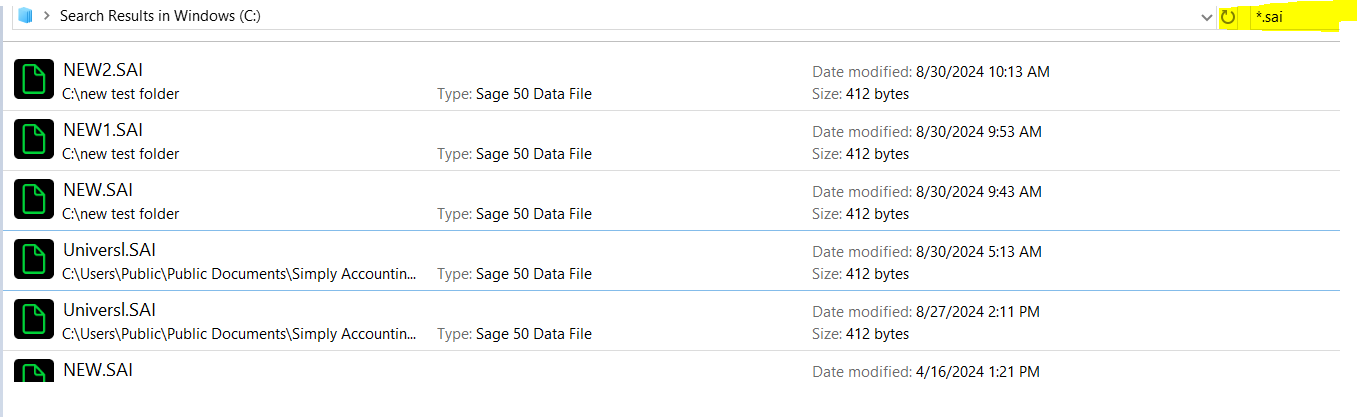
- In Windows Explorer, right-click on the SAI file, hold your CTRL key, and select the SAJ file.
- NOTE: This will highlight both files.
- Right-click the highlighted items and select Copy.
- Browse to the new location, right-click and select Paste.

 Africa
 Asia
Asia Australia
 France
 Ireland
 Kenya
Kenya Nigeria
 Portugal
 South Africa
 Spain
Spain United Arab Emirates
 United Kingdom
 United States
 Germany