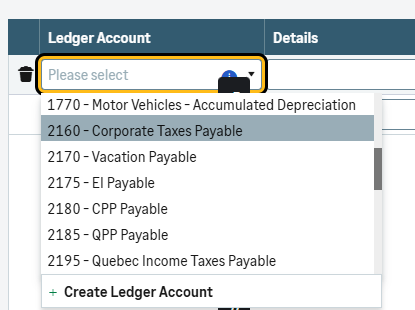
Registered businesses can submit tax payments in instalments to CRA or Revenu Québec. Sage Accounting tracks instalment totals on tax returns. Before setup, determine which ledger accounts will hold payments. Create ledger accounts in the Chart of Accounts before enabling the feature. If paying both CRA and Revenu Québec, create separate accounts for each tax type.
Cause
Resolution
Setting up tax instalments
Go to Settings, Business settings, Sales taxes.
Enter a GST/HST or QST registration number.
In the Tax Instalments section, select 'I pay GST/HST in instalments' or 'I pay QST in instalments' to enable the feature.
Select or create ledger accounts for each tax type.
NOTE:
If unsure of the account to use, seek the assistance of an accounting professional.
After setup, tax instalment accounts appear in selection lists for transactions.
Entering instalment payments
Create a Vendor named such as 'CRA Tax Remittance' or 'Receiver General' if it doesn't exist.
Sage Accounting Start
Go to Banking, Money out.
Select your tax remittance Vendor and your Paid from Bank Account from the dropdown.
Select the correct tax instalment account in the Ledger Account field.
Ensure that you use No Tax from the dropdown.
Enter the values and select Save to process the transaction.
Sage Accounting Standard and Plus
Go to Banking, Payments.
Select Other Payment to record payments made from a bank account.
Select your tax remittance Vendor and your Paid from Bank Account from the dropdown.
Select the correct tax instalment account in the Ledger Account field.
Enter the values and select Save to process the transaction.
Posted payments add cumulatively to the corresponding tax return box:
GST/HST return: Box 110
QST return: Box 210
To review the totals, go to Reports, Tax Returns. Open or create a GST/HST or QST return and check the relevant box.
Adjusting the instalments total
To adjust, click the total to open the Instalment Adjustment. Enter the correct figure in Change figure to. The difference between this and the Calculated Figure appears to the right. Provide a reason and save the adjustment.