| | Take ownership of a subscription from another accountant |
| Description | How to take ownership of a client's subscription in the event they've moved to you. |
| Resolution | Take ownership of a subscription from another accountant Ask for an invitation - In Client Management, go to Operations and select Invitations.
- From Subscription transfers, select Find out how to ask for a transfer.
A panel will open with the following instructions on how to request access to the accountant's subscriptions.
 - Copy the Accountant ID and forward on.
How the accountant transfers ownership of subscriptions -
The accountant needs to select the client from the list in Client Management. -
Then select Products. -
Then select the Subscriptions action dropdown, then Transfer subscriptions. -
The Transfer subscription ownership sidebar opens showing subscriptions that they can transfer. Then select Continue.
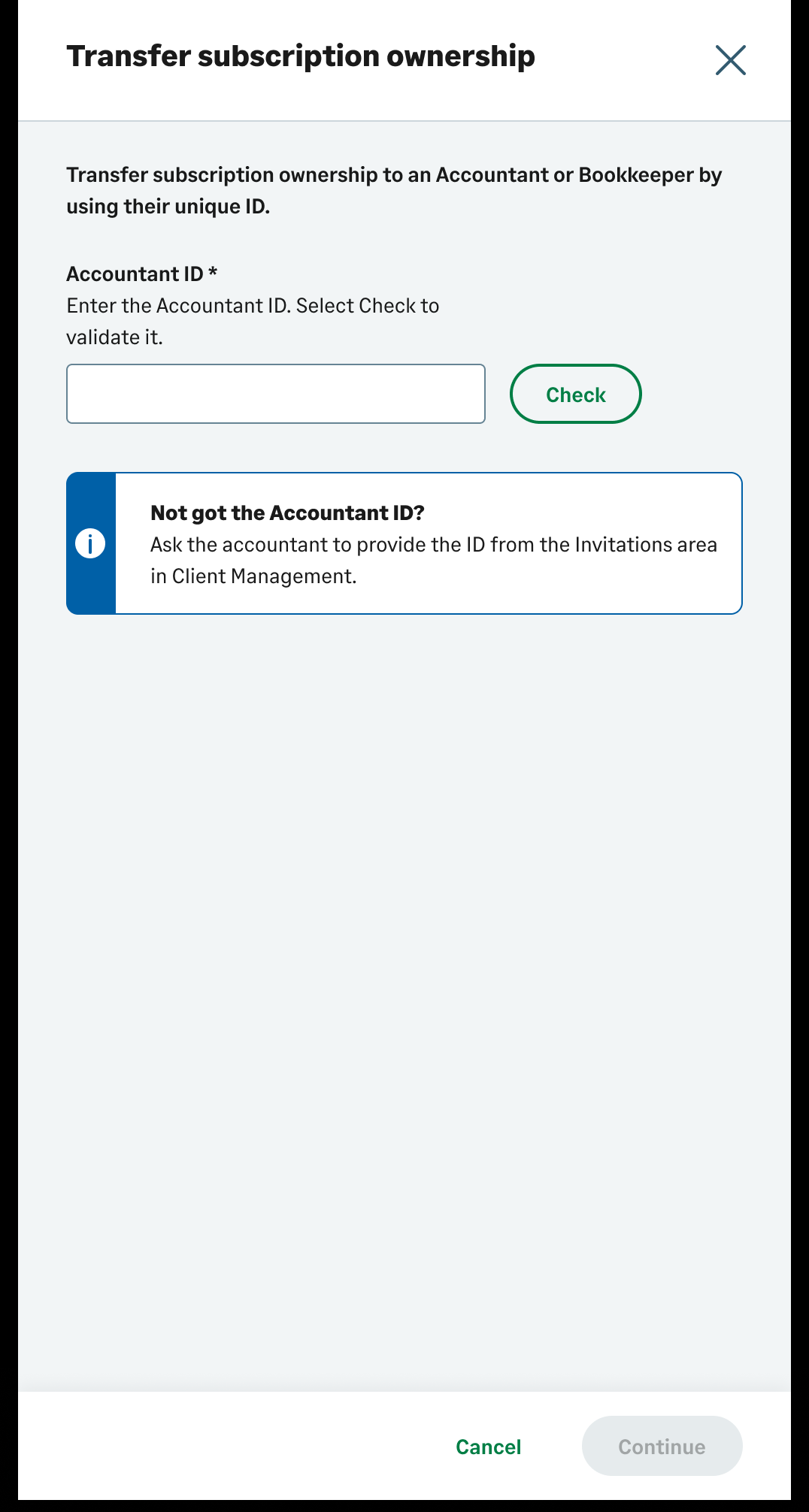
- In the Accountant ID box, enter the Accountant ID you provided, then select Check.
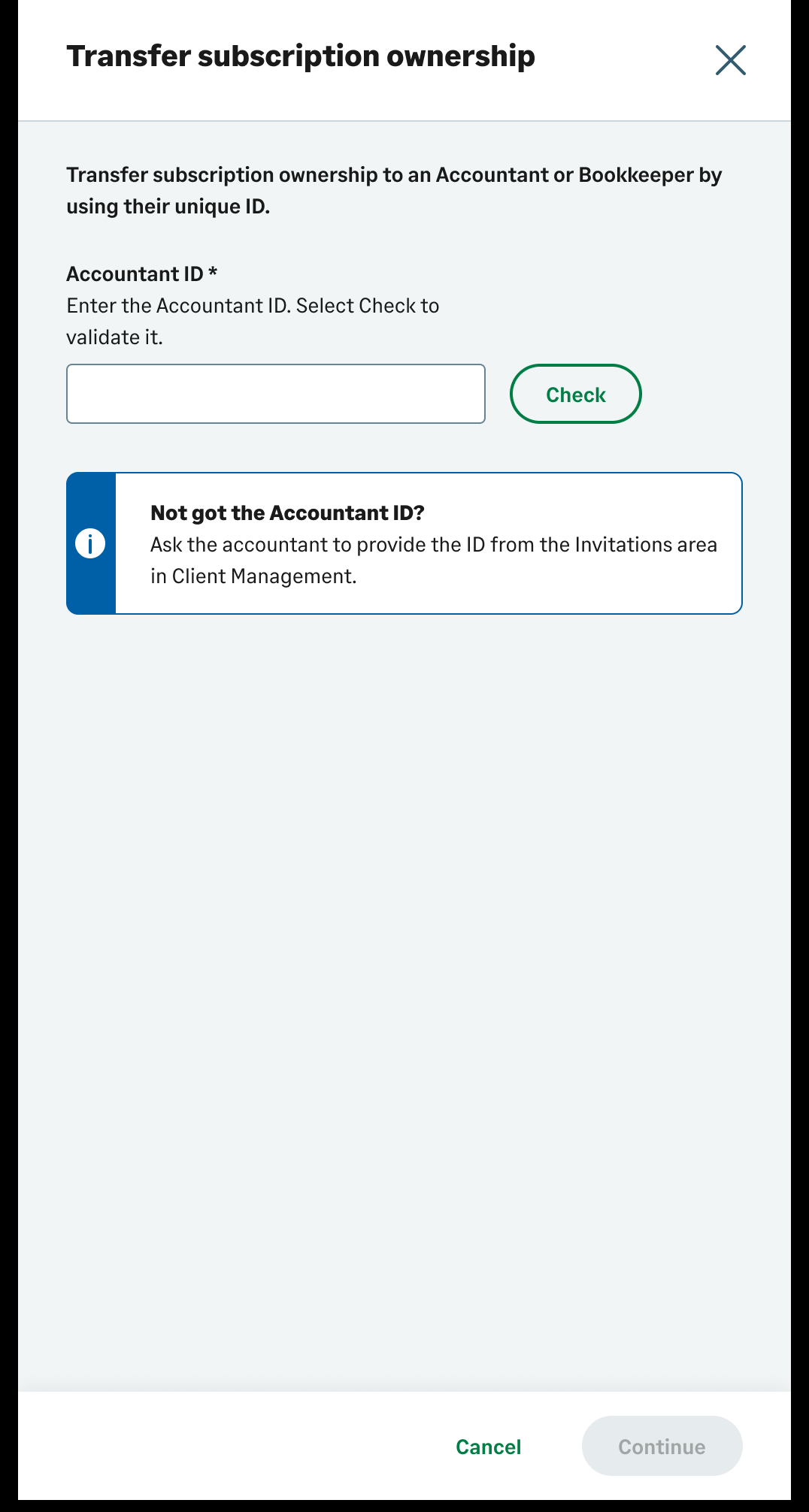 - If the Accountant ID is valid, Client Management will display the practice name.
 - Select Continue.
- They need to review the terms and conditions. Then select the box next to I understand the consequences...
- Then select Send the transfer request.
- They’ll receive a success message to say the subscription transfer request has been sent.
The subscription transfer request will be sent to you. The accountant can continue working as normal. |
|